Vehicle account
This is the account that already owns the car and can open it in the official mobile app. Tesla’s getting-started page says to create a vehicle account and to turn on a verified email and multi-factor authentication. AgentDrive does not charge for this account.
You do this. The AI agent must not ask for the password or the authentication code.
Step 1 — Confirm this account owns the car
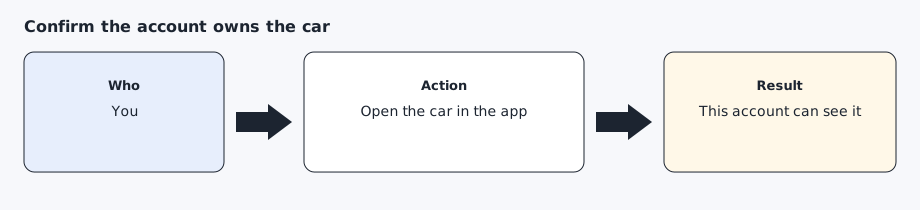
Open the official app and select the car. If the car is missing, this is the wrong account. A driver profile that cannot approve keys will fail later, at pairing, not during a chat reply.
Use the account that owns the car, or an account the owner has explicitly allowed to add a key. Do not use someone else’s login.
Step 2 — Turn on a verified email and multi-factor authentication
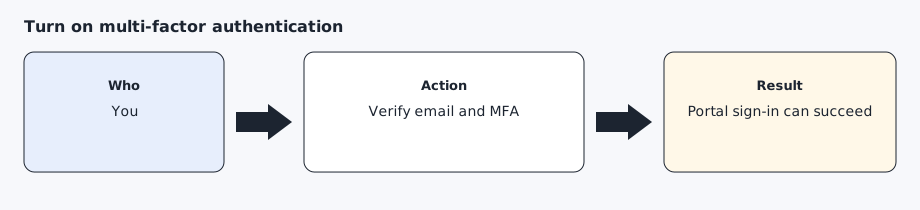
In the account security settings, confirm the email is verified and multi-factor authentication is on. Tesla’s getting-started page lists both before the application step. The developer portal will ask for a code when you sign in. That code stays in the portal. Do not paste it into chat.
Step 3 — Keep the official app signed in on your phone
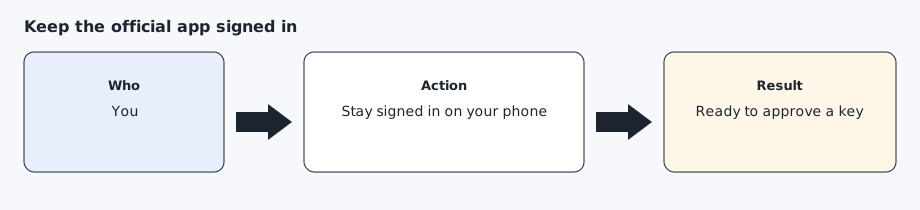
Pairing happens in the official app, not in a browser tab the AI agent controls. Leave the app installed and signed in with this same account. You will need the phone again after the public key is online.
Expected result
You can open the car in the official app, the account email is verified, and multi-factor authentication is on. You have not given the AI agent a password or a one-time code.
Common errors
The car does not appear. Stop and sign in with the owner account instead of continuing under a different login.
The portal later says the account cannot continue. Finish email verification and multi-factor authentication, then try the portal again. Do not create a second vehicle account to get around it.
Prompt for the AI agent
Copy this only when you want the AI agent to do the part below. It must not invent approvals.
Help me check that I am ready to use my own vehicle account with AgentDrive. Ask me whether I can see the car in the official app, whether the account email is verified, and whether multi-factor authentication is on. Do not ask for my password, a one-time code, a VIN, or a live location. Stop after the checklist.